Official Guide / App Store Purchase and Installation
Shadowrocket Download & App Store Guide
Download on the App StoreA paid app with a one-time purchase, available only on the App Store. Verify the storefront and developer before purchasing. If you've already purchased it, check your purchase history first.
- Developer: Shadow Launch Technology Limited
- App ID: 932747118
- U.S. price: $2.99, one-time purchase; see the App Store listing for the current price
- For iPhone and iPad; see the App Store listing for details
Storefront and Account Region
Check your Apple ID country or region first
This app is not available in the mainland China storefront. Your Apple ID country or region determines which App Store you see; your device's location, system language, and the storefront segment in a web link do not change your account region. The main button on this page opens the U.S. product page, but purchase availability and the displayed currency depend on the account and storefront currently in use.
To check your region, go to Settings → Apple ID → Media & Purchases → View Account → Country/Region on your device. Check the region shown before making any changes. The Apple ID in Settings may appear under your account name; if system labels differ, follow what your device displays.
The Country/Region page is also Apple's official entry point for managing your region. If you need to change it, follow the on-screen instructions. Payment methods, account balance, active subscriptions, and Family Sharing settings may affect the process. Read Apple's guidance and confirm your account meets the requirements before proceeding. This page explains where to find the setting; it cannot guarantee a change will be approved or that changing regions will make a purchase possible.
If the product page says the app isn't available in your region, return to your account settings to check the region instead of repeatedly searching for similar names. If you've purchased it before, check the purchase history for the original account first. Purchases are tied to an account and won't automatically appear under another account just because you use the same device. Check the storefront region, verify the app, and restore the purchase as three separate steps.
Before You Buy
Developer, official icon, and app ID
Check all three details together; don't rely only on the app name or its position in search results.
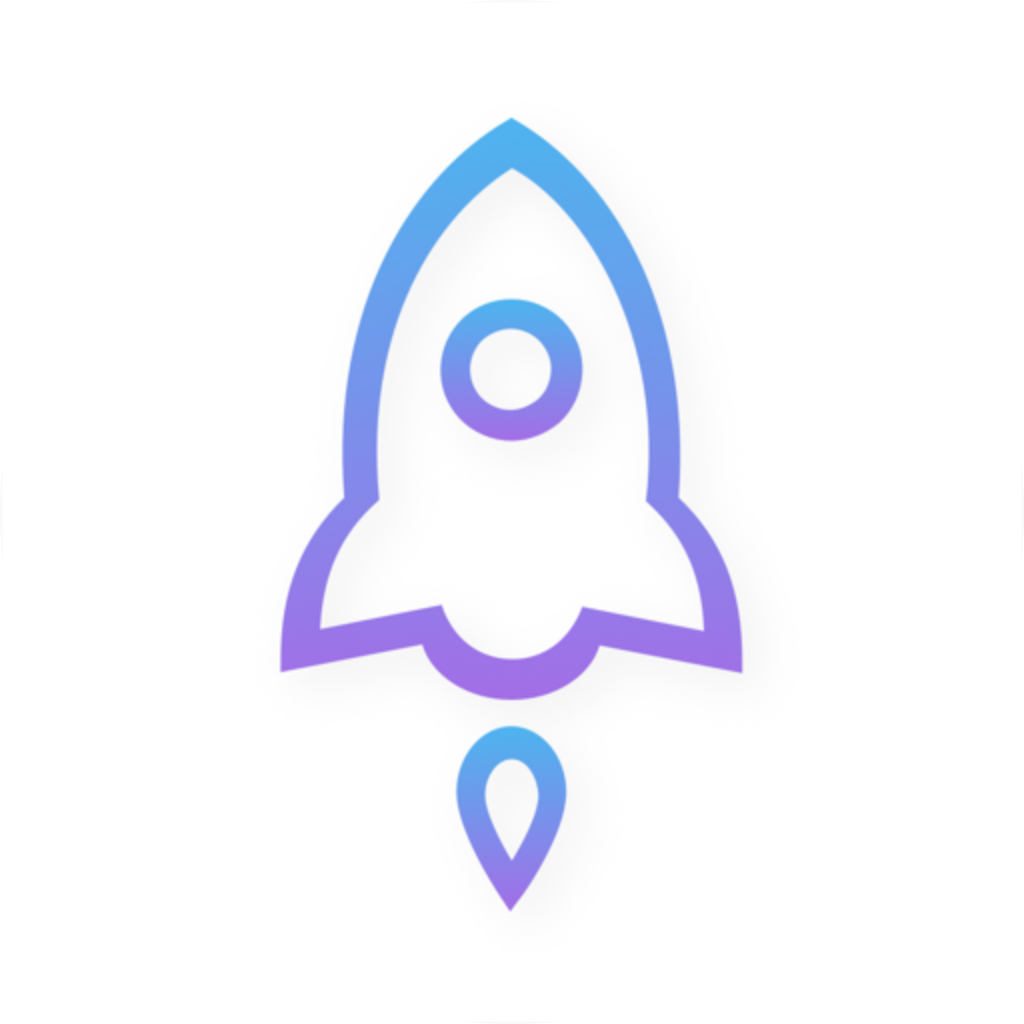
App ID: 932747118
Open the product page and check the full app name, Shadowrocket, then confirm the developer field shows Shadow Launch Technology Limited. If only part of the name is visible, open the app details to verify the full name. An app with the same or a similar name in search results is not necessarily the same product.
The second check is the official icon: a rocket outlined in blue and purple on a white background, matching the official icon shown on this page. Use the icon as an additional visual check, not as the sole basis for identification. Similar artwork, a nickname in the app name, or a matching search snippet cannot replace checking the developer and app ID.
The third check is id932747118 in the product page URL, which corresponds to app ID 932747118. Check the number in the browser address bar or the product page's share link. The storefront segment may change by region, but this app ID should remain the same. Once the developer, icon, and ID all match, check the price and purchase button.
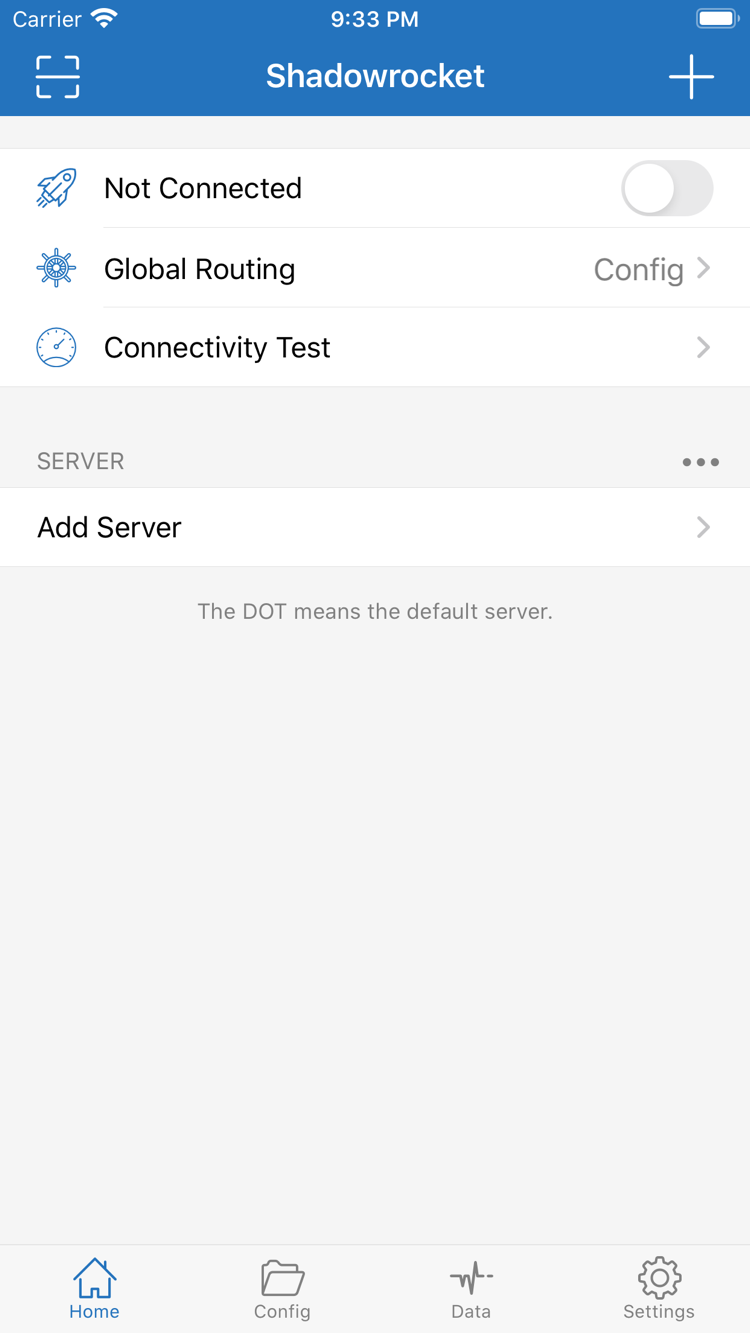
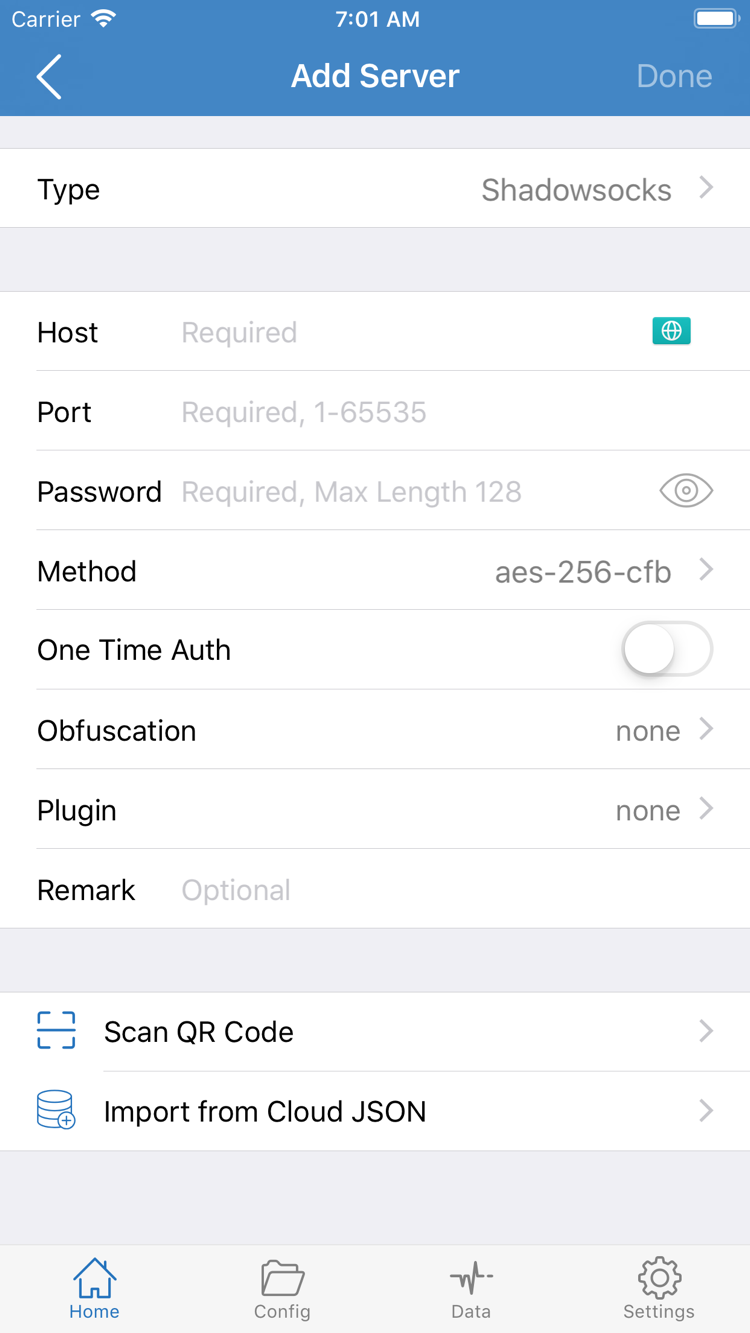
The two images on the right are official App Store screenshots for comparing the Home and Add Server screens. The screenshots show the English interface; layouts may vary by screen size or app updates. Similar-looking screens can help explain the steps, but verify the app using the three App Store details.
The Home screenshot shows Not Connected, Global Routing, Connectivity Test, and SERVER. The Add Server screenshot shows Type, Host, Port, Password, Method, Scan QR Code, and Import from Cloud JSON. Field names are shown in English. When entering details, use only your own server information—don't guess values from the screenshots.
Primary device / iPhone
Purchase, installation, and first connection permission
Open the same App Store product page on your iPhone, verify the app, and check the compatibility section. Refer to the App Store page for system requirements; don't treat requirements quoted elsewhere as current installation criteria. If your device doesn't meet the requirements shown in the store, check its system settings before deciding whether installation is possible.
For your first purchase, review the price and account details, then confirm payment when prompted by the App Store. If you've already bought the app, first check whether the button offers a redownload or find it under Purchased. After the store finishes installing it, open Shadowrocket on your device. If the download remains pending, check your network, available storage, and App Store alerts. You don't need to change connection settings in the app at this stage.
When you first open the app, start with Home. SERVER lists existing connection entries; Add Server is for entering or importing your own details. Global Routing determines how requests are handled. Config, Proxy, and Direct correspond to configuration rules, proxy policies, and direct routing. Buying the app doesn't automatically add server details, and an empty list doesn't mean the purchase failed.
When you're ready to use your details and start your first connection, the system may ask to add a VPN configuration. This system prompt authorizes the app to create the required network configuration; it isn't a request to purchase again. Confirm that the request comes from the app you're using, then follow the system instructions. If you cancel, you can try connecting again when you're ready. Until authorization is complete, app entries and the system's connection status may not match.
Installation only means the app is ready to open; it doesn't mean a server is available. After importing your details, check the fields, select a connection, and use Connectivity Test to help diagnose it. If the test fails, check whether your existing details are correct and valid rather than assuming the App Store installation is the problem. For the import steps, see the Getting Started guide.
Primary device / iPad
Installing on another device with the same account
One purchase with the same Apple ID lets you install Shadowrocket on iPhone and iPad. Refer to the App Store page for Universal Purchase availability and system requirements. Before using it on iPad, confirm that Media & Purchases is signed in to the account used for the original purchase, then find the app under Purchased in the App Store. Similar-looking sign-in states don't guarantee that the store account is the same; check the account shown in the store.
The wider iPad screen may change list widths, content layout, and spacing compared with iPhone screenshots. Use interface labels such as Home, Config, Settings, and Add Server to identify features rather than relying on a button's exact position. Follow the system prompt to authorize the first connection on iPad, too; authorization on another device doesn't complete the same step here.
Purchase eligibility and in-app connection details are separate. Even if you can redownload the app, check whether your own subscriptions, server details, and configuration are available on iPad. If the list is empty, reimport your existing details. Don't assume another device's selected settings, rule files, or preferences will sync completely, and don't confuse restoring a purchase with restoring connection settings.
The compatibility section on the same App Store product page also lists Mac, Apple TV, and Apple Vision. Check the App Store page for device compatibility, Universal Purchase availability, and system requirements. These devices use the same App Store product page. This guide focuses on iPhone and iPad; check the actual interface on other devices for where controls appear.
If a new device shows a price instead of a redownload option, pause and check the account, region, and purchase history. Once you've confirmed it's the same app and purchase account, read the store's instructions. Seeing the app icon on another device isn't enough to confirm that the current account has a purchase record.
Switching devices and reinstalling
Restore the app first, then restore your connection details
Sign in with the Apple ID used for the original purchase and find Shadowrocket under App Store → Account → Purchased. You can usually download it again without paying. Depending on the system interface, the list may appear under Apps or Purchase History. The key is to find the app already purchased with the original account, not to start a new search and purchase.
Before you start, check the account used for Media & Purchases. The account used for other device features may differ from the one used for App Store purchases, so use the account that bought the app. Once you find the purchase record, verify the developer and app ID to avoid selecting a similar-looking search result. If Purchased shows a redownload button, follow the store prompts.
If the purchase doesn't appear, check these points in order: are you signed in to the original account, did you search for the correct name, is the app hidden, and was the purchase completed? Check the account's purchase history for more information. If the product page still shows a price, don't repeatedly confirm payment as a test. First confirm which account the purchase is associated with, then follow the App Store's instructions.
After reinstalling, check the SERVER list on Home and your configuration in Config. Once the app is installed on a new device, import your own subscription or server details to continue setup. Whether existing details are retained depends on your backup and migration. A purchase record restores eligibility to use the app; it doesn't guarantee that server settings, configuration files, and app preferences have also been restored.
When migrating connection details, confirm they are still valid. Even if an entry has the same name as on your old device, its address, authentication fields, or selected rules may need updating. After importing, check Global Routing, select the intended mode, then connect and verify. You can test a known destination first to confirm how requests are handled. Reinstalling the app alone doesn't confirm that your setup has been restored.
Check the App Store product page and your current Family Sharing settings to see whether family sharing applies. Restoring your own purchase and getting the app as a family member are separate processes; eligibility for one doesn't imply eligibility for the other. For payment, purchase history, or account restrictions, follow the account guidance provided by the App Store.
Price and purchase terms
The one-time purchase covers the app
The U.S. price is $2.99 as a one-time purchase. Check the current App Store listing for the actual price. Other storefronts display prices in local currency, so check the price shown before confirming payment; the U.S. amount may not match your final charge. Price and payment terms depend on the store and your account. This page doesn't replace the payment confirmation screen.
A one-time purchase gives you the right to use the Shadowrocket app; there is no monthly app fee. When switching devices or reinstalling, you can usually restore the app from Purchased with the original account without paying for it again. Check the account's purchase history and the store's current prompt to confirm eligibility; the device name or app icon alone can't confirm it.
The app purchase does not include a connection plan. Buying the app once does not include a connection plan. This is the official Shadowrocket website and guide. We don't provide or sell nodes or subscriptions, or recommend connection services.
You should already have your own subscription or server details. Shadowrocket uses this information to connect, apply rules, and provide diagnostic tools. Buying the app doesn't provide a server to connect to or change the validity period of your existing details. Check app purchase issues in the App Store; troubleshoot connection details using your own information. Handle these as separate issues.
For example, if the app opens but the SERVER list is empty, import your existing details. If the list has entries but the connection fails, check the address, port, authentication fields, and connection test. If the store says payment is incomplete, resolve the purchase status first. Identifying which stage the problem occurs at can help avoid trying to fix a connection error by purchasing the app again.
App updates are delivered through the App Store, where you can check for available updates and official release notes. Updating the app, refreshing your existing subscription content, and switching configuration files are separate actions. The store updates the app; imports and updates within the app handle your own details. After installing or updating, check your configuration and Global Routing to make sure requests are handled as expected.
This page covers where to get the app, purchasing, and restoring a purchase. To continue setup, see the Getting Started guide: import your existing details, choose a mode, and test the connection. For protocol fields, see the technical reference. There's no need to buy the app again just because a connection test didn't go as expected.
Purchase Q&A
Can't find it, download issues, and purchase recovery
First identify whether the issue involves your store account, device compatibility, or an in-app connection. Then choose the next step.
Why can't I find Shadowrocket in the App Store?
This app is not available in the mainland China storefront. Your Apple ID's country or region determines which App Store you see. Check it under Settings → Apple ID → Media & Purchases → View Account → Country/Region. Availability for purchase depends on what the storefront for your current account displays.
What if the product page opens but the download won't complete?
Check whether the current storefront allows purchases, device compatibility, your account's payment status, and available storage. Then check your network and any App Store alerts. Refer to the App Store page for system requirements. If you already purchased the app, check your purchase history first to avoid confirming payment again.
Do I have to pay again when switching devices or reinstalling?
Sign in with the Apple ID used for the original purchase, then find Shadowrocket under App Store → Account → Purchased. You can usually download it again without paying. If a price appears, check the Media & Purchases account and purchase history. After reinstalling, check or reimport your own subscriptions, server details, and configuration.
Can I install it on iPad after purchasing?
A single purchase with the same Apple ID can be used to install Shadowrocket on iPhone and iPad. Refer to the App Store page for Universal Purchase availability and system requirements. On iPad, find Shadowrocket in App Store purchase history and check device compatibility.
Can I install it on Mac, Apple TV, or Apple Vision?
The compatibility section on the same App Store product page lists Mac, Apple TV, and Apple Vision. Check the App Store page for device compatibility, system requirements, and Universal Purchase availability. The same product page remains the place to get the app.
The interface is in English. Where should I start?
Start with the SERVER list and Add Server on Home, then check Global Routing. Config uses configuration rules; Proxy and Direct select proxy and direct routing policies. Connectivity Test helps diagnose existing connection details. When connecting for the first time, follow the system prompt to approve adding a VPN configuration.